

Note: This tutorial was first published in 2020 and updated in November 2025 for current product naming and registration options. Oracle Enterprise Data Management Cloud Service (EDMCS) is now delivered as Oracle Fusion Cloud Enterprise Data Management (EDM). The registration flow is unchanged; a few options, such as the application-level tree version settings, have expanded, and those are noted below. Because Oracle refreshes the interface periodically, your screens may differ slightly from the screenshots.
This is a step-by-step tutorial on registering an application in Oracle Enterprise Data Management using the Financials Cloud General Ledger application type. Registering the application lets you govern your chart-of-accounts segments and hierarchies centrally in EDM and export the changes back to Oracle Financials Cloud General Ledger. To register an application you need the Application Create role, and, if you are connecting to a live environment, the instance URL and credentials for it.
When you finish, EDM automatically builds a governed data chain: the application and a default view, dimensions and node types for your segments and their value sets, and viewpoints, node sets, and hierarchy sets for your trees and tree versions. That is what gives you a ready-to-use place to maintain each segment once registration completes.
For other EDMCS tutorials, check out "Importing Oracle Financials Cloud General Ledger Dimensions in EDMCS" and "EDMCS Alternate Hierarchy".
Step 1
Navigate to the Applications view and click Register in the top right.

Step 2
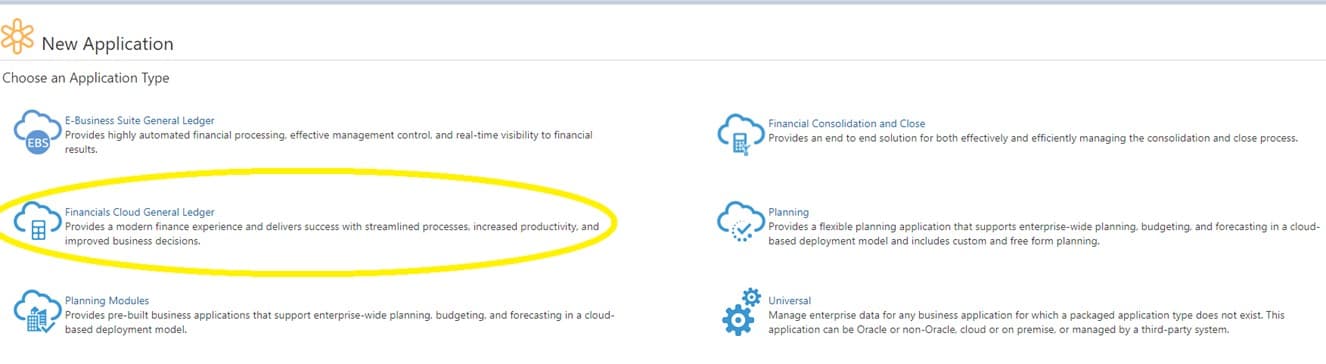
From the application type menu, select Financials Cloud General Ledger and give the application a name. In this example it is named "FCGL." A description is optional. Select Next to continue.

Steps 3 & 4
If you are connecting to a live environment, add a connection to your external ERP system. Name the connection, then enter the Instance Location URL, Identity Domain, username, and password for the environment. Unlike some other Oracle Cloud application connections in EDM, connections to Financials Cloud General Ledger currently support Basic authentication only; OAuth2 isn't an option for this connection type.
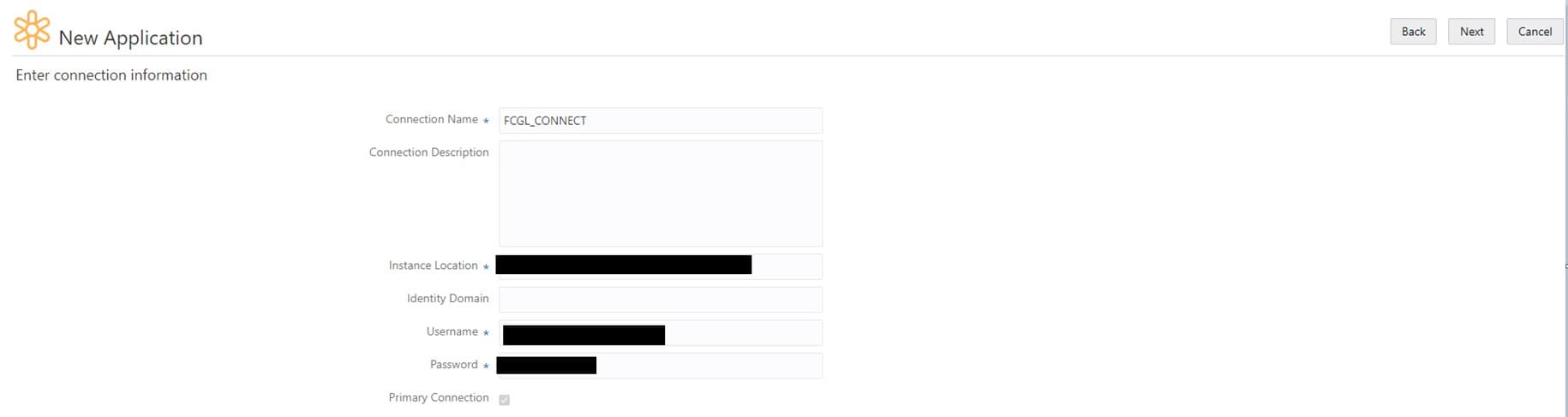
Once the connection is added, select Next to review it. If all the information is correct, select Create.
Step 5
Enter the application settings. Add the Active Languages that are active in the external Financials Cloud application and choose a single Base Language from among them. This step is also where you set the tree behavior for the application: whether to allow multiple active tree versions at once, whether to allow multiple root nodes, whether to allow duplicate (shared) nodes, and the maximum hierarchy depth (enter -1 for no limit). Select Next to continue.

Step 6
In this section you can add any Global Descriptive Flexfields that apply to the application; up to 50 can be defined. Select Next to continue.

Global Descriptive Flexfields let you capture additional attributes for segment values, and they can be imported from and exported to Oracle Financials Cloud General Ledger.
Steps 7 & 8
Add all of the segment value sets that exist in the external connection and that you want to manage in EDM. Enter the value set code exactly as it is defined in General Ledger, since it is case-sensitive. Select Next to continue.
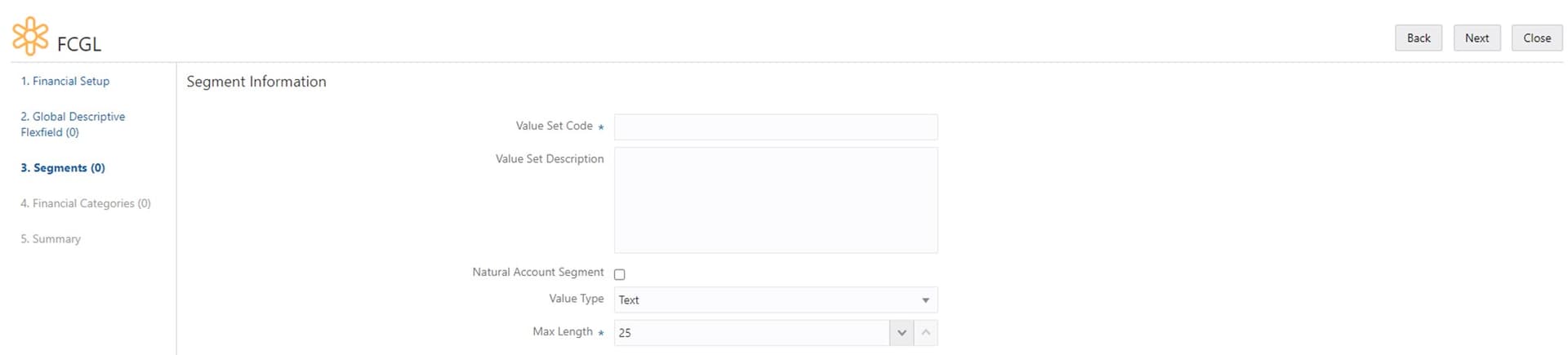
Select Natural Account Segment if the segment is used as the natural account in the chart of accounts, that is, the segment that carries the account types such as Asset, Liability, and Equity.
Next, specify the value type (text or numeric) and the maximum character length, and set the validation rules: the minimum and maximum values, whether the values must be Upper Case, and whether Zero Fill applies. Select Next to continue.

Zero Fill means a value must contain as many characters as the maximum character length. For example, if the maximum length is five and a user enters AAA, Zero Fill requires it to be padded to 00AAA. For numeric value types Zero Fill is enforced automatically, so 222 with a maximum length of four becomes 0222.
Step 9
In the next section you can add any Context Sensitive Descriptive Flexfields for the current segment. Select Next to continue.

Context Sensitive Descriptive Flexfields let you capture additional attributes about segment values for specific segments, and they can be reused across more than one segment by adding them to each segment they apply to.
Step 10
Add the trees, or hierarchies, that are valid for the segment you have created. Each tree has a tree code and one or more tree version names, with a starting and ending date per version; the ending date must be the same as or later than the starting date, and a version that is currently in use does not require an ending date. Select Next to continue.

You are then routed back to the Add Segments section, where you can repeat the process for any other segments the application needs. Once all segments are added, select Next to continue.
Step 11
In this section you can add any financial categories that are not already listed. By default, EDM includes the same set of financial categories as a standard General Ledger application. Select Next to continue.
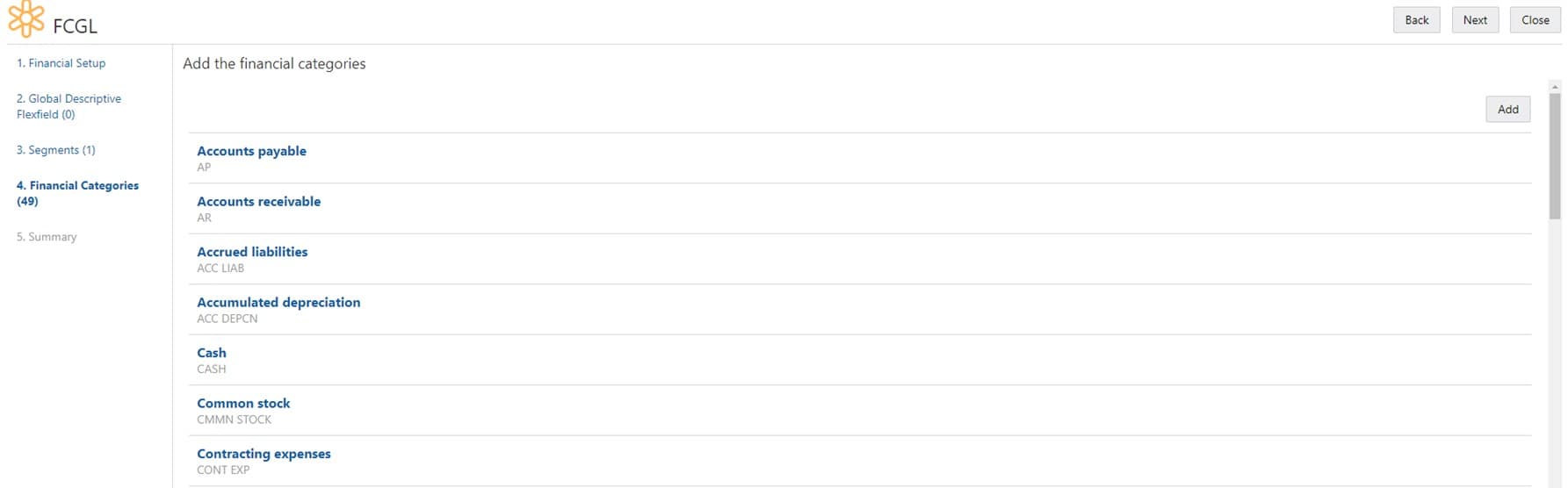
Financial categories identify groups of accounts for reporting with Oracle Transactional Business Intelligence.
Step 12
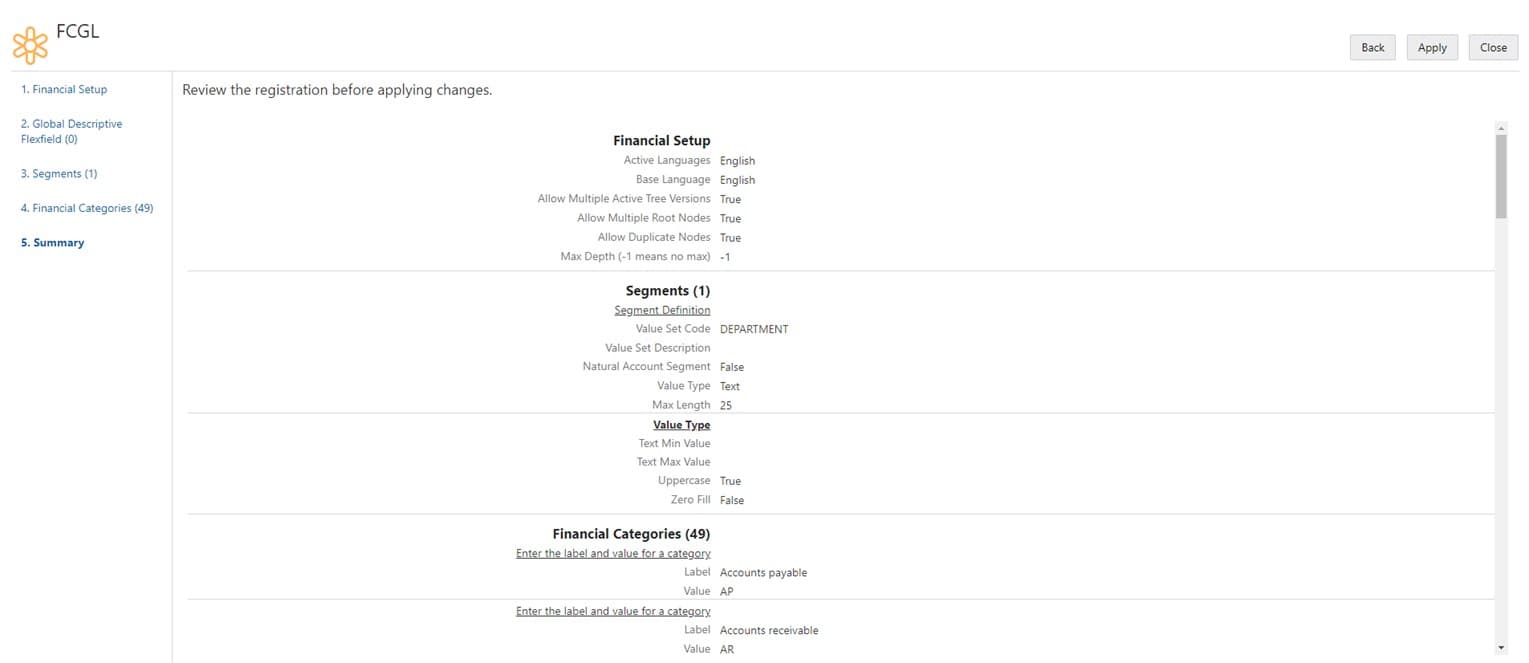
Review the summary of your application and make sure every field is correct. To complete the registration, select Apply. EDM then builds the data chain for each segment and its trees and sets the objects to active.
You can modify the application after creation from the Applications view: click the three dots under Actions and select Modify Registration.

Want to learn more about EDMCS? Check out our EDMCS Overview.