

Note: This tutorial was first published in 2021 and updated in September 2025. The product formerly sold as Planning and Budgeting Cloud Service (PBCS) and Enterprise PBCS (EPBCS) is now delivered as Oracle Fusion Cloud EPM Planning, offered in Standard and Enterprise editions. The mechanics below still apply, since Planning continues to use the Essbase calculation engine and Calc Manager business rules.
Oracle Planning lets you build and customize an application end to end, from dimension metadata, to data loads through Data Integration, to the calculation logic that turns inputs into reportable numbers. That calculation logic lives in business rules, authored in Calc Manager and executed by the Essbase engine underneath Planning. This tutorial focuses on one of the most common rules you will build: the roll-up, or aggregation, rule that consolidates level-0 input up through the hierarchy so that parent members show the correct totals.
When You Need a Roll-Up Rule
Whether a parent member needs a rule to display its total depends on how the member's Data Storage property is set in the outline. Upper-level members set to Dynamic Calc are computed at retrieval, so their children aggregate on the fly and no rule is required to see the total. Members that store data, whether set to Store or to Never Share, hold their own value and are not calculated until an aggregation rule populates them.
In a typical design, dense dimensions such as Account or Product have their upper levels set to Dynamic Calc, so totals appear automatically when a user retrieves data. Other dimensions, often sparse ones such as Entity, Channel, or Region, have their top members set to Never Share. Never Share is worth understanding precisely: it prevents Essbase from creating an implied shared relationship (which happens by default when a parent rolls up from a single child), so the parent stores its own value instead of borrowing the child's. Because those members store data rather than calculating it at retrieval, you need a business rule to roll the children up into them.
Key Calculation Settings
A roll-up rule usually opens with a few SET commands that control how the Essbase engine behaves during the calculation.
SET UPDATECALC OFF disables Intelligent Calculation. By default, Intelligent Calculation tracks blocks as "clean" or "dirty" and recalculates only the dirty ones, which is an optimization. But when several users or processes may be calculating the same block combinations, a block another process already marked clean can be skipped and left with a stale value. Turning Intelligent Calculation off forces every block in scope to be calculated regardless of its status, which is the safe choice for a shared, multi-user aggregation.
SET AGGMISSG ON tells Essbase to consolidate #MISSING values during aggregation, so a parent is overwritten with the sum of its children even where some children are missing. This is appropriate, and faster, when all data is entered at level 0, which is exactly the case for a version whose type is Standard Bottom Up. Be deliberate about it, though: the default is OFF for a reason. If a version allows data to be entered at parent levels (for example a Target, or top-down, version), leaving AGGMISSG off protects that upper-level input from being overwritten by an aggregation of missing children.
FIX ... ENDFIX narrows the calculation to just the blocks you need. Fixing on sparse dimensions is the recommended way to control block selection, because it determines which data blocks Essbase touches and keeps the rule from calculating the entire database.
Using Runtime Prompts
Roll-up rules are usually written to run against a point of view the user chooses at launch, rather than a hard-coded one. That is what the curly-brace items in a rule are.

Dimensions or members wrapped in { } are runtime prompts. When the rule is saved and then launched, each runtime prompt presents the user with a selection, and the values they pick are substituted into the rule before it executes. So a single roll-up rule can aggregate whichever Scenario, Version, Year, or Period the user selects, without you writing a separate rule for each combination. (Runtime prompts differ from substitution variables, which are written with an ampersand and resolve to an administrator-maintained value rather than prompting the user.)
Aggregating the Dimensions
Inside the FIX, you aggregate the dimensions that store data. The dimensions whose upper levels are set to Dynamic Calc are already handled at retrieval and do not belong here; every other dimension needs to be rolled up by the rule. The CALC DIM command aggregates a dimension and evaluates any member formulas it contains. For sparse dimensions that have no member formulas, AGG is often a faster alternative, since it aggregates the hierarchy without the extra work of checking for formulas. Once the aggregation commands are in place, ENDFIX closes the rule.
Putting It Together
A simple roll-up rule that ties these pieces together looks like this:
SET UPDATECALC OFF;
SET AGGMISSG ON;

FIX({Year}, {Scenario}, {Version})
   /* Account and Product roll up at retrieval (Dynamic Calc),
      so only the stored dimensions are aggregated here. */
   CALC DIM("Channel", "Region", "Entity");
ENDFIX
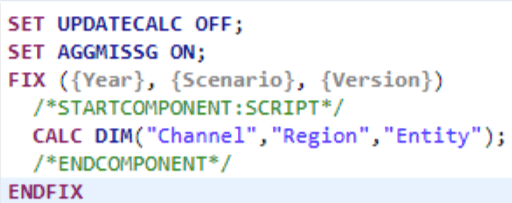
The same pattern as it looks in Calc Manager's Script tab: the two SET commands, a FIX on the Year, Scenario, and Version runtime prompts, and a CALC DIM aggregating the Channel, Region, and Entity dimensions.
Read top to bottom: the two SET commands establish how the engine should calculate, the FIX limits the run to the runtime-prompt point of view the user selects, CALC DIM (or AGG, for sparse dimensions without formulas) aggregates the stored dimensions, and ENDFIX closes the block. Which dimensions appear in the CALC DIM or AGG line depends entirely on which members store data versus calculate dynamically in your own outline, so confirm those Data Storage settings before you write the rule.
Roll-up rules are foundational, and getting the settings right, especially matching AGGMISSG to your version type and fixing tightly on sparse dimensions, is what keeps them both correct and fast as the application grows. If you would like help designing calculation logic or tuning rule performance in your Planning application, the CloudADDIE team works with these tools every day and is glad to help.