

Note: This tutorial was first published in 2019 and updated in February 2026 for current product naming. In Oracle EPM Cloud, the tool discussed here was called Data Management and is now Data Integration (reached from the Data Exchange card); FDMEE is the on-premises predecessor. Because all three share the same underlying integration engine, the error messages below apply across them, and PBCS is now delivered as part of Oracle Fusion Cloud EPM Planning.
When you work with Oracle EPM Planning (PBCS), the data load process can get tedious. From building the application to defining dimensions and members, a single error can cause a load to fail, and every step rewards close attention to detail, especially names and properties.
Data Integration (Data Management / FDMEE)
Financial Data Quality Management Enterprise Edition (FDMEE) is the on-premises product; its cloud equivalent was Data Management and is now Data Integration. Whatever the name, the tool gives analysts control over the integration process: defining source data, creating mapping rules that translate it into the target format, and executing and managing the periodic load.
An interactive load runs through four stages in the Workbench:
- Import: pull the source data into staging.
- Validate: check the source members against the target application's members and flag anything unmapped.
- Export: write the mapped data to the target application.
- Check: confirm the results against any check rules.
At each stage you may hit an error. Below are common ones we have seen, and the solutions that resolved them.
Import Stage Errors
Most often, the import stage fails because of improper dimension mapping. Start by auditing the dimensions in your Import Format against the file you are loading; a single mismatched dimension can cause the import to fail.
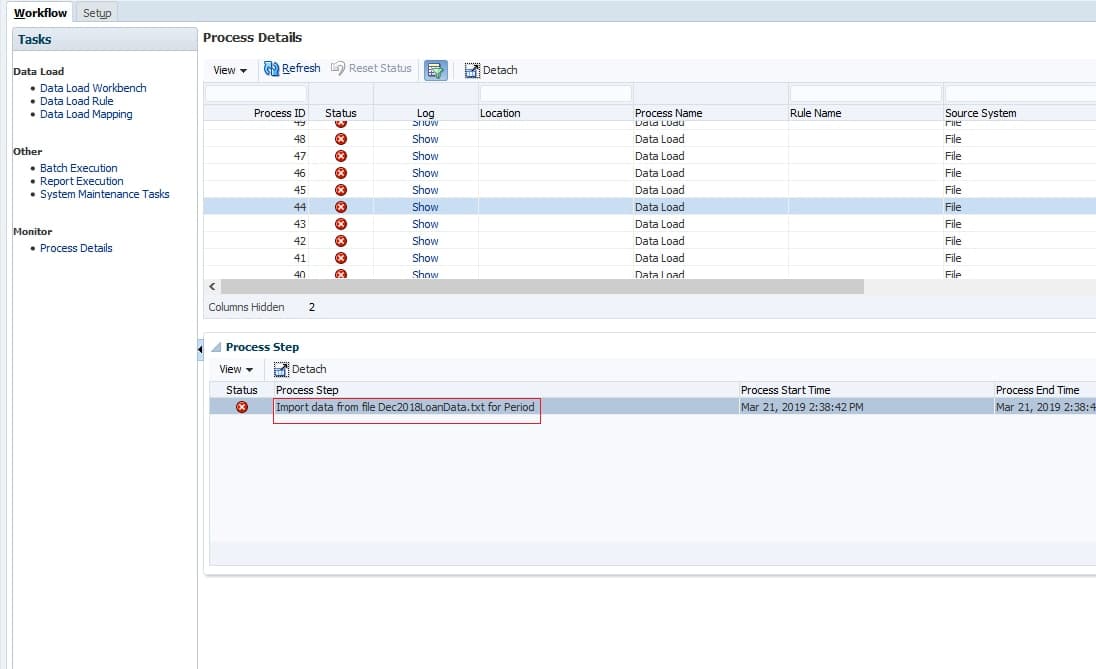
Common import error messages include:
ERROR [AIF]: Members not specified for Non period driverFATAL [AIF]: Error in File Import Data
If every dimension is mapped correctly and you still see an error, look at the design. Unusual structures in a company's data can make one-to-one mapping genuinely complex. From there:
- Confirm that all data load mappings are in place.
- Refresh the cube so new or changed members are recognized.
- If the application has several cubes, confirm you are loading to the correct target plan type.
Resolving data quality before you go further is worth the time, because it protects the accuracy of every downstream report and, ultimately, the success of the project.
Validate Stage Errors
In the validate stage, Data Integration checks the loaded data against the existing members in the application. Classic Data Management's process log doesn't label a distinct "Validate" step the way current Data Integration does, so a validate-stage problem usually shows up as an error in the log's processing code rather than its own status icon.
Common validation error messages include:
FATAL [AIF]: Error in COMM Validate DataINFO [AIF]: EPMFDM-140274: Message - Initialize error maps
If these appear, work through the following:
- In the error log, check the processing code to see what went wrong.
- Fix the dimension or members and refresh the cube.
- Verify the member properties.
- Re-run the validation.
Export Stage Errors
Export-stage errors usually mean dimensions and members are not mapped correctly, and even a dimension name can be the culprit.
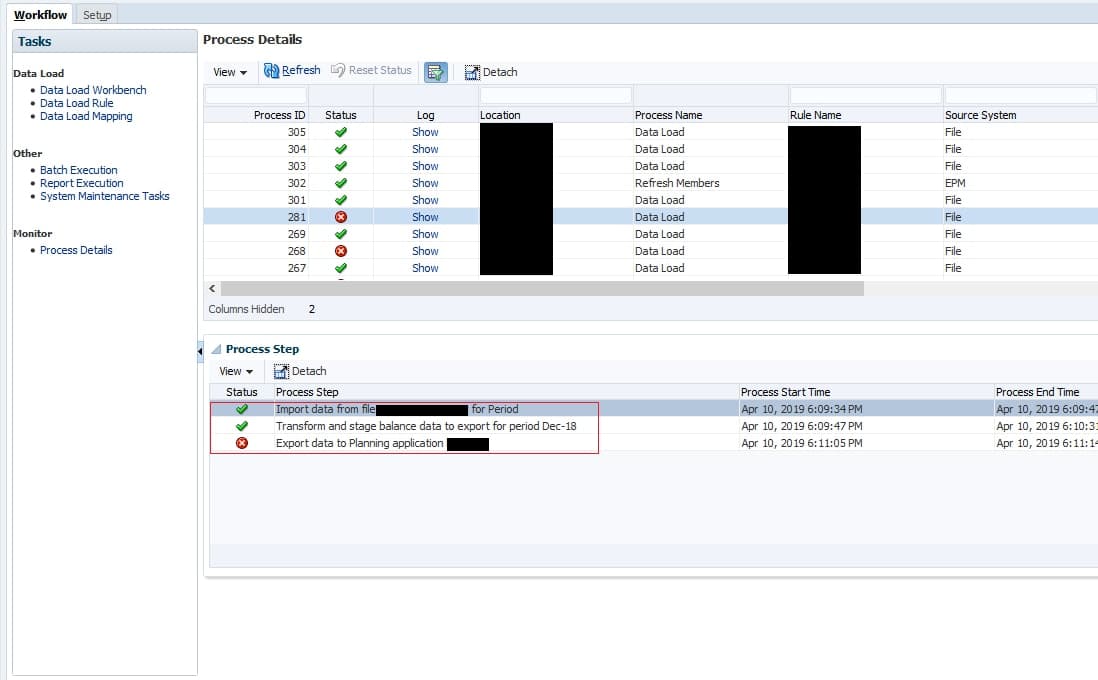
Common export error messages include:
FATAL [AIF]: Error in COMM Load DataNot all dimensions were specifiedERROR [AIF]: Members not specified for Non period driverFATAL [AIF]: Error in CommData.loadData
Here is what has worked for us:
- Review the loaded file and confirm every column abides by the Import Format.
- After changing metadata in the application, refresh it from the application registration. In classic Data Management this is under Setup, then Register, then Target Application; in Data Integration it is under Actions, then Applications.
- Check the file header for special characters such as
#or!. - In Smart View, confirm there are no duplicate members and that every dimension is valid for its specific cube. Finally, fix any member properties that are in error.
Conclusion
These are a handful of the errors we have run into while loading data through Data Integration, but they are far from the only ones; many more can surface when the application or the format is not set up correctly. Working the stages in order, Import, Validate, Export, and Check, and reading the error log at each one is the fastest way to find the real cause. If you would like a hand designing or troubleshooting your integrations, the CloudADDIE team is glad to help.