
Period Movement Variance is the newest of the IPM insight types, and configuring it well is mostly a matter of getting the calendar, the data slice, and the threshold right before you run anything.
This walkthrough covers the full configuration and execution sequence, then the checks worth running against the insights it produces. For the wider picture of how the four insight types fit together and what has to be in place before any of them work, see Oracle IPM Insights: what it actually does.
What Are Period Movement Variance Insights?
Period Movement Variance Insights identify significant variance between the current period and a configured benchmark period. IPM generates an insight when the absolute variance exceeds the configured threshold.
Depending on the insight definition, comparisons can be based on:
- Year-over-year comparison
- Previous-period comparison
- A custom-period comparison
- Historical average
Variance can be evaluated using Absolute Variance (%) or Absolute Variance (Numbers). Period Movement Variance Insights compare the current period with configured historical benchmark periods. Future-period analysis is not currently available for this insight type.
Note: Turn on Generative AI and prediction capabilities in Application -> Settings for advanced capabilities.
Configuration Workflow
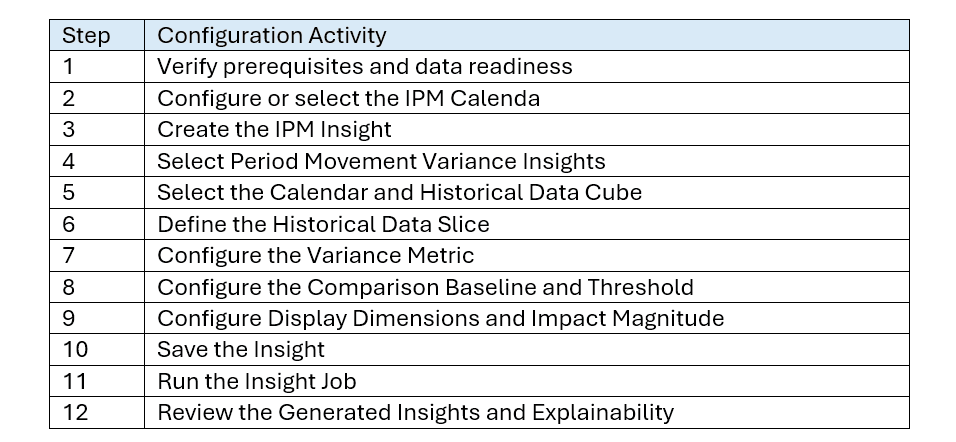
1. Configure the Calendar
The calendar defines the time periods available for IPM analysis. Configure the applicable cube, time range, current period, historical periods, and future periods.
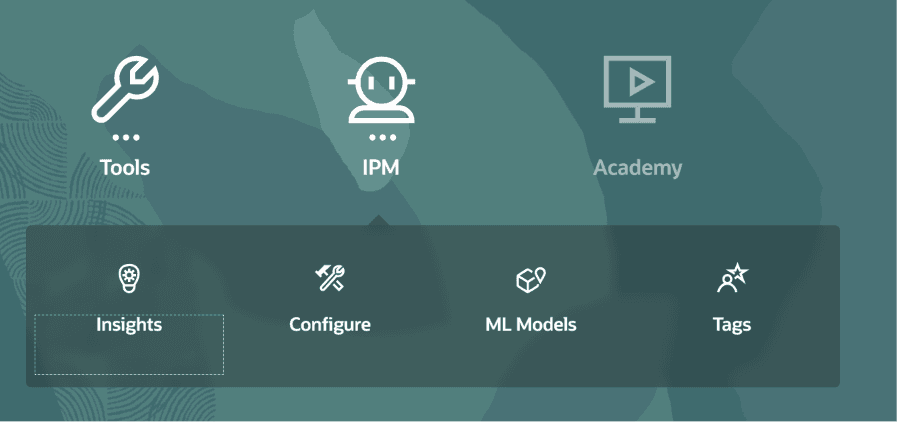
- From the Oracle Planning home page, open IPM.
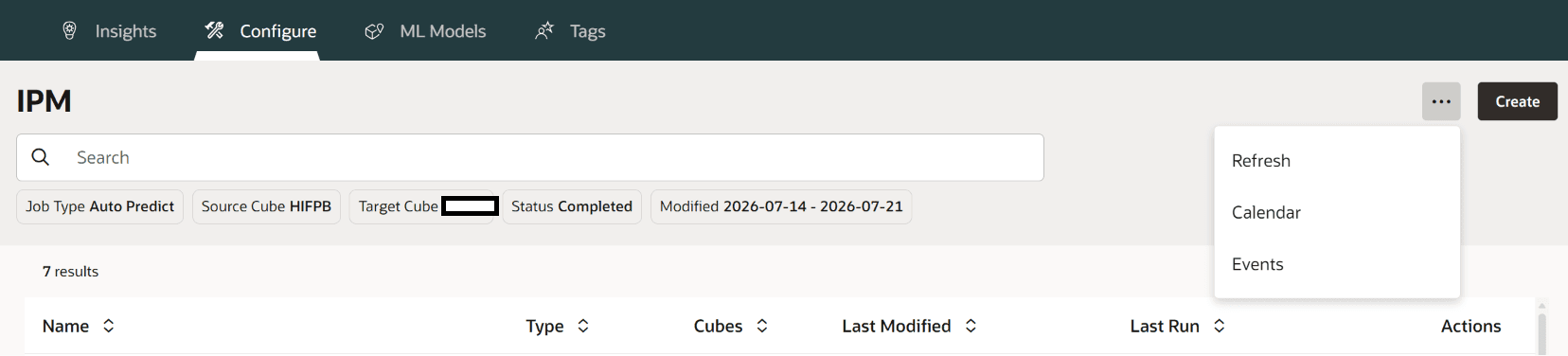
- Select Configure, open the Actions menu, and select Calendar.
- Create a calendar and provide a meaningful name and description.
- Select the cube to which the calendar applies.
- Define the complete time range, current period, number of historical periods, and number of future periods.
- Save the calendar.
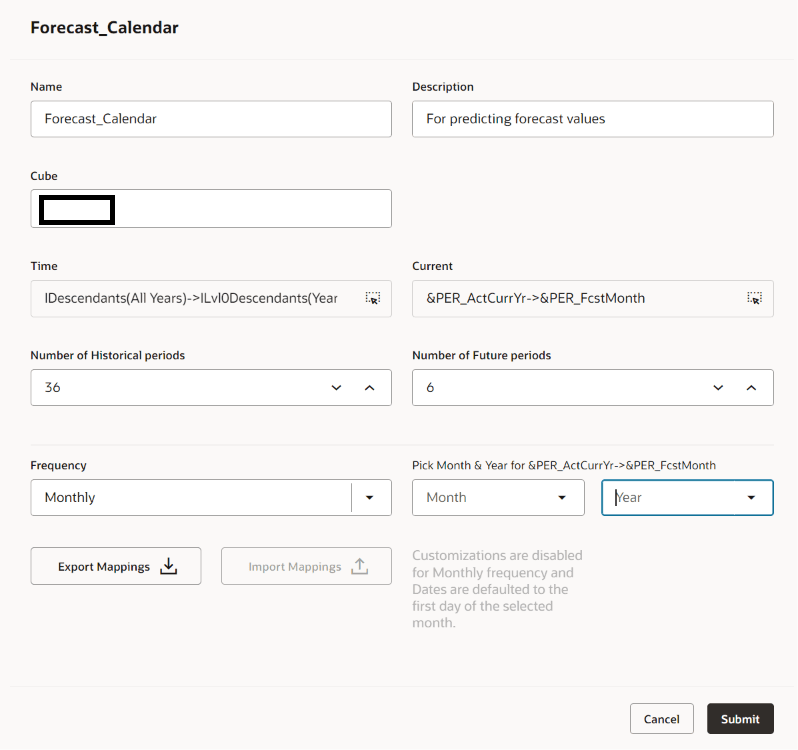
Implementation tip: Use substitution variables for the current Year and Period where appropriate. This can allow the calendar to advance with the application period and reduce manual maintenance.
2. Create the IPM Insight
- Return to IPM and select Configure.
- Select Create.
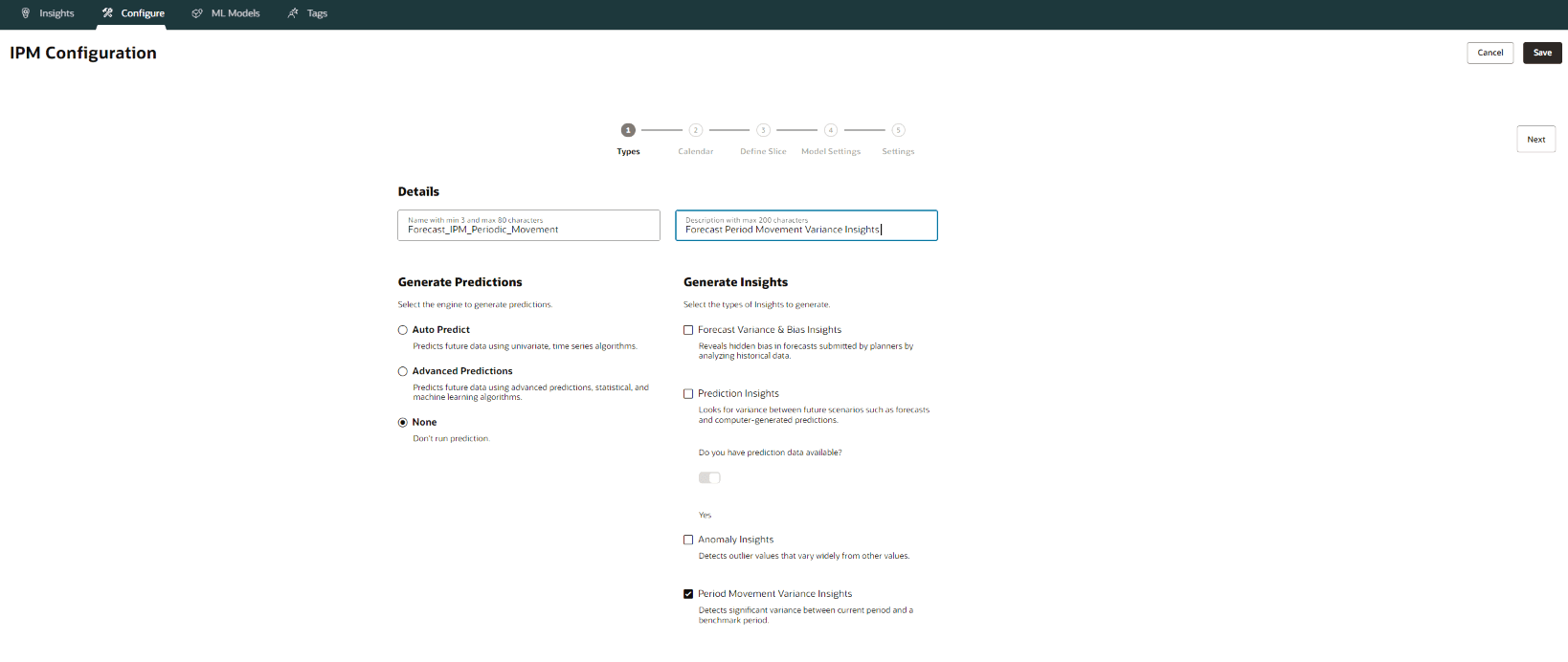
- Enter an Insight name and description.
- Under Generate Insights, select Period Movement Variance Insights.
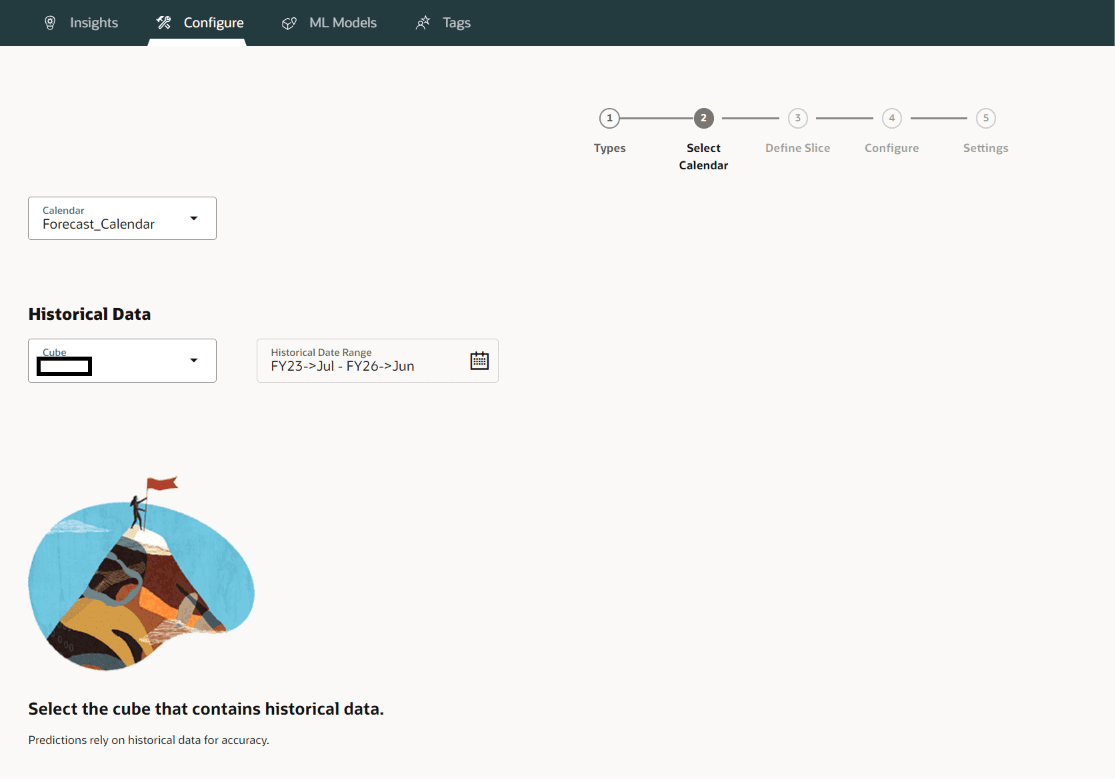
- Select the applicable calendar and historical-data cube.

3. Define the Historical Data
Select the data intersection that contains the time-series data you want IPM to analyze for period movement variance.
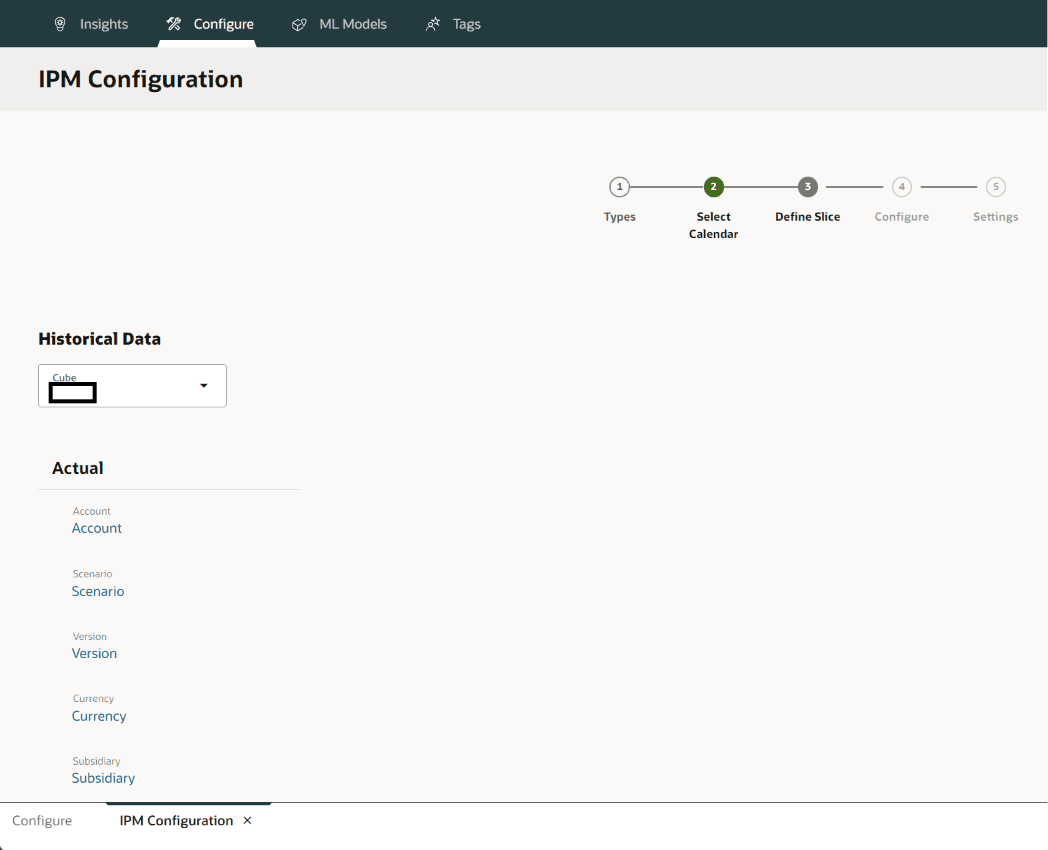
Data-quality checkpoint: Verify that the selected historical data slice contains the intended time-series data at the required dimensional intersection. Missing, sparse, or inconsistent data can affect the usefulness of the resulting insights.
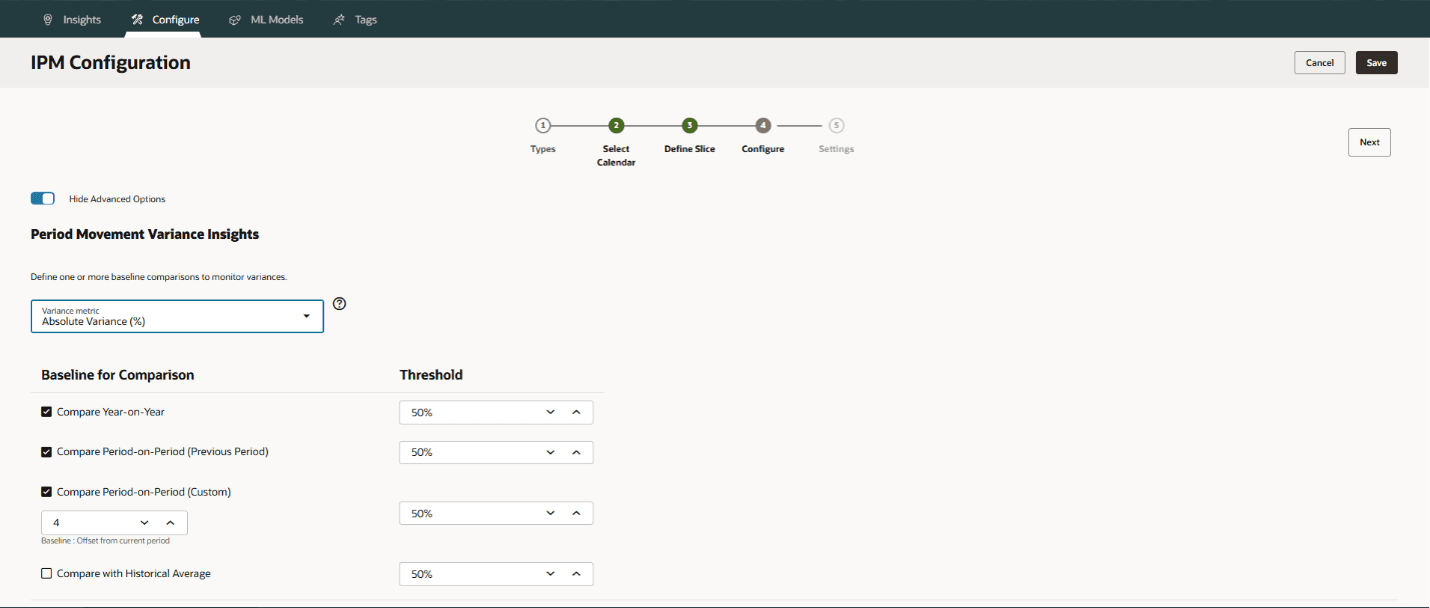
4. Configure Variance Metrics and Baselines
Configure the variance measurement, comparison baseline, and threshold used to determine when an insight should be generated.
- Variance measurement: Percentage or Absolute Value
- Comparison baseline: Year-over-year, previous period, custom period, or historical average
- Threshold: An insight is generated when the absolute variance exceeds the configured threshold
5. Configure Insight Display and Impact Magnitude
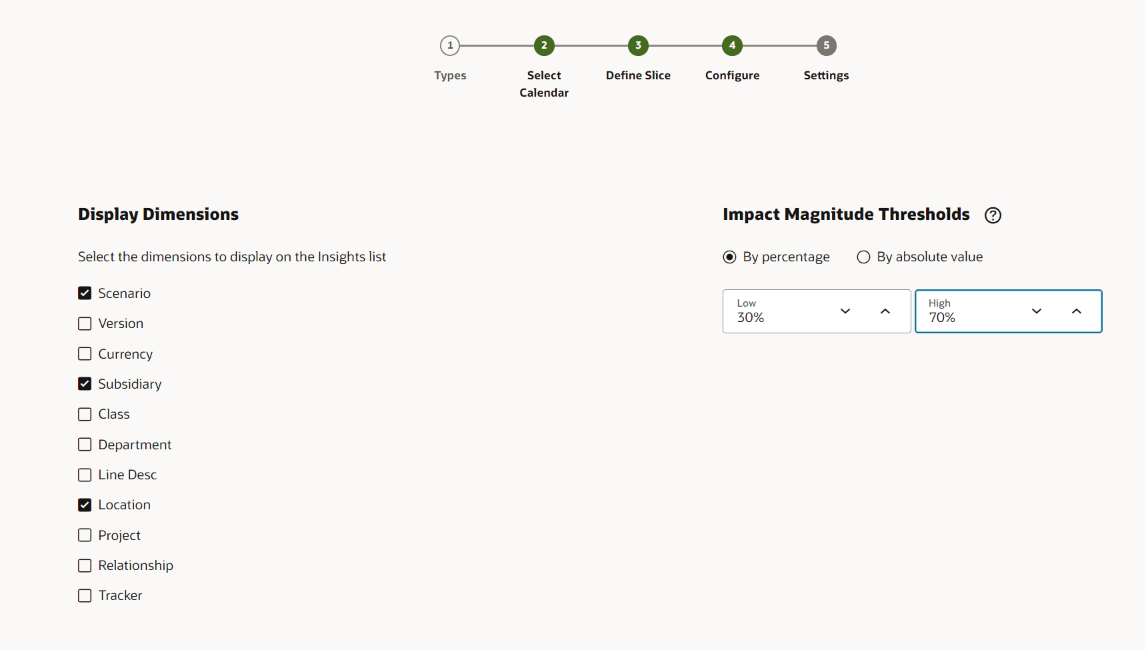
Configure the dimensions displayed in the Insights list, and define Impact Magnitude thresholds to classify generated insights as Low, Medium, or High based on the calculated impact. These thresholds help users prioritize the insights that require attention.
6. Save and Run the IPM Insight
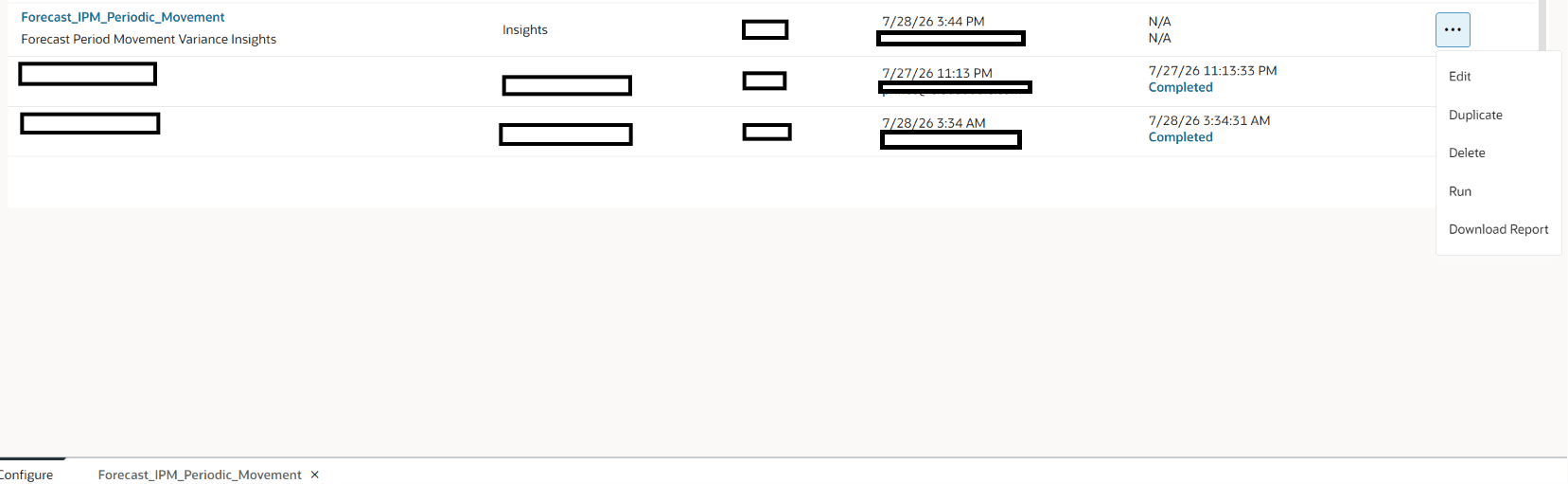
- Save the IPM Insight configuration.
- Open the Actions menu.
- Select the configured Period Movement Variance Insight.
- Select Run.
- Wait for the IPM job to complete, then open the Insights tab.
- Review the generated insights.
If no insights are generated, review the configured threshold, comparison baseline, historical data slice, and underlying data values.

7. Review the Generated Insights
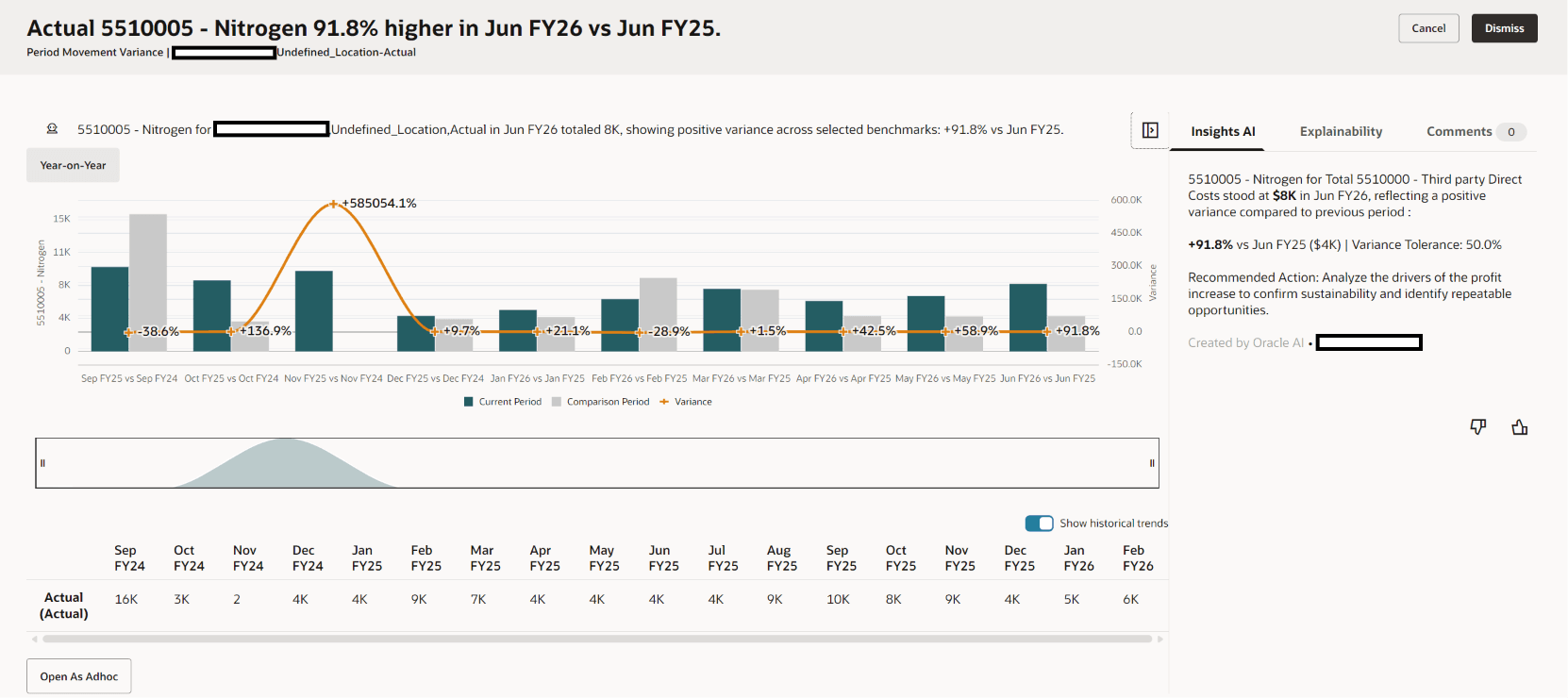
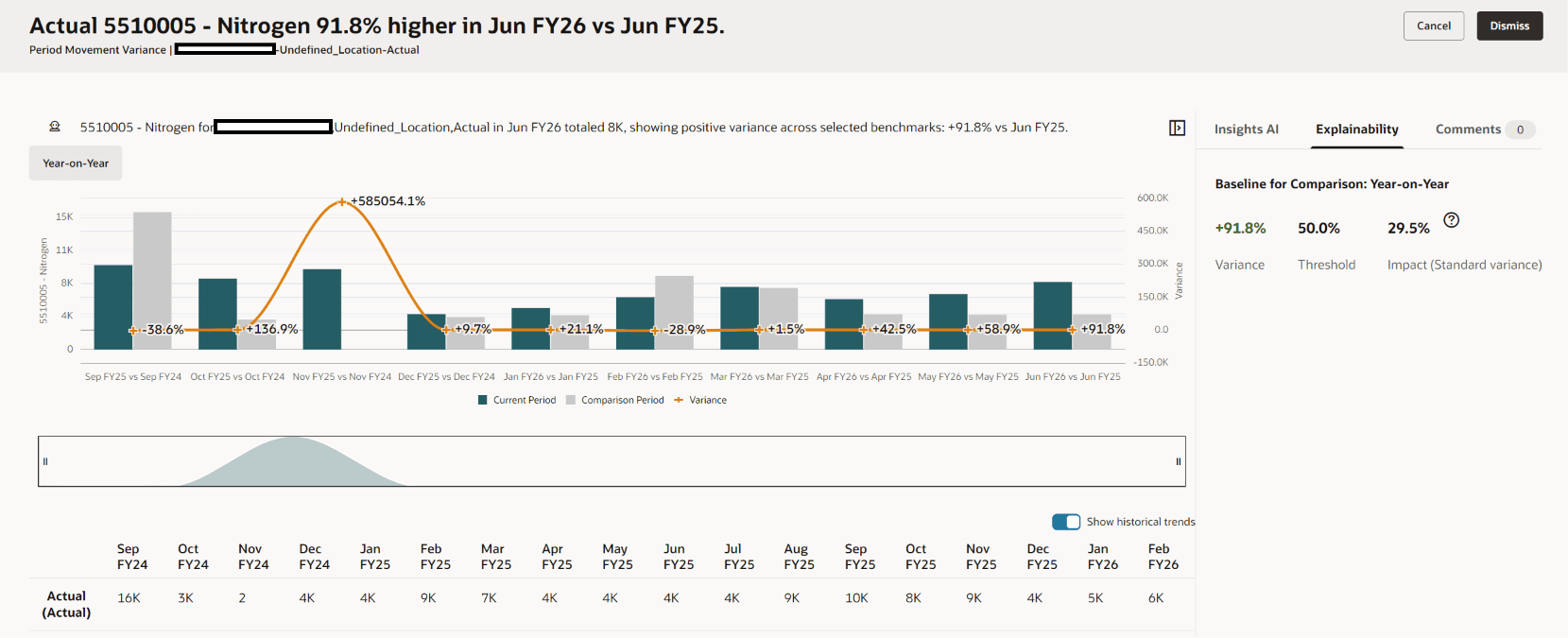
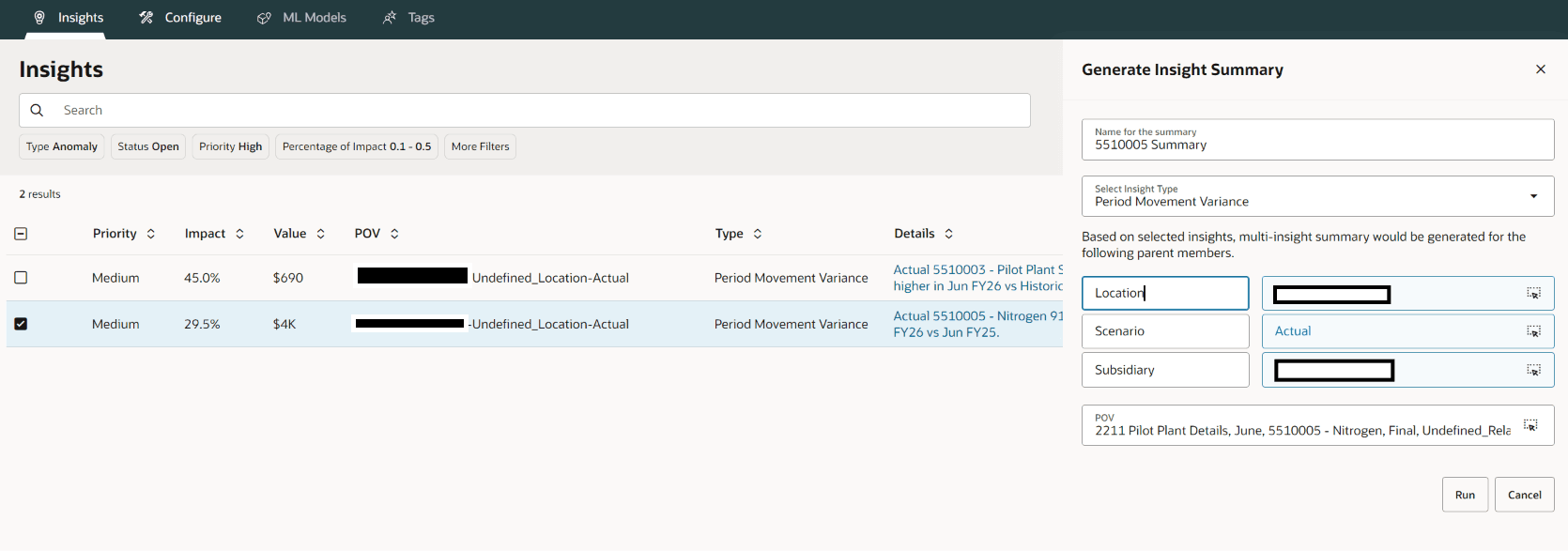
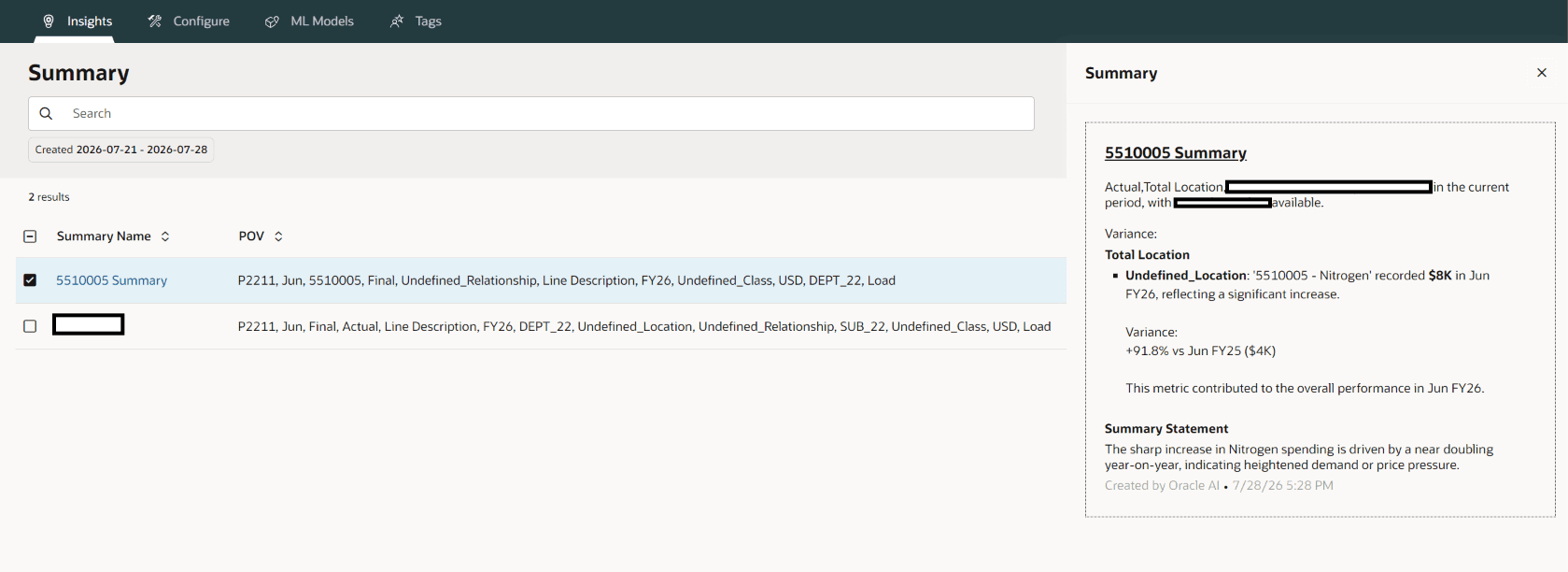
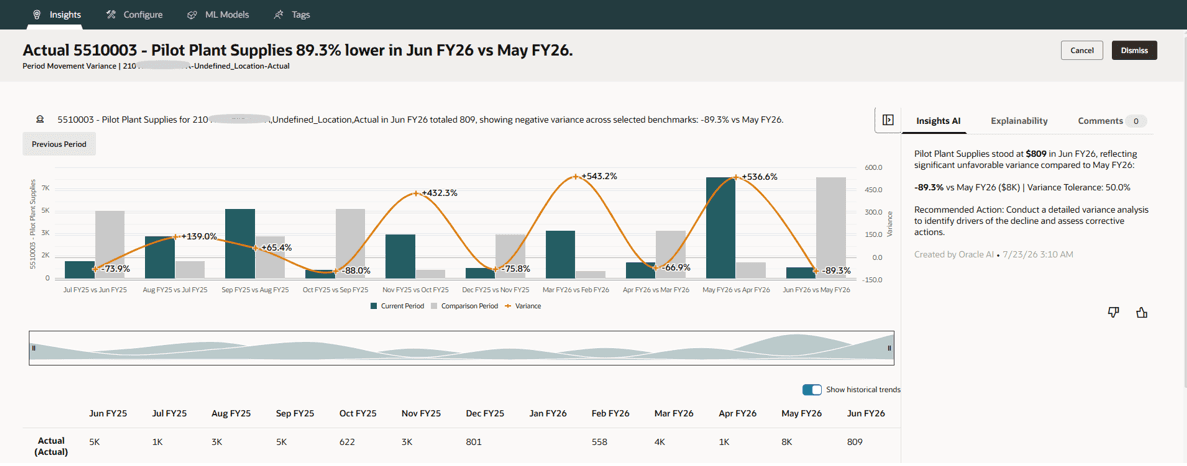
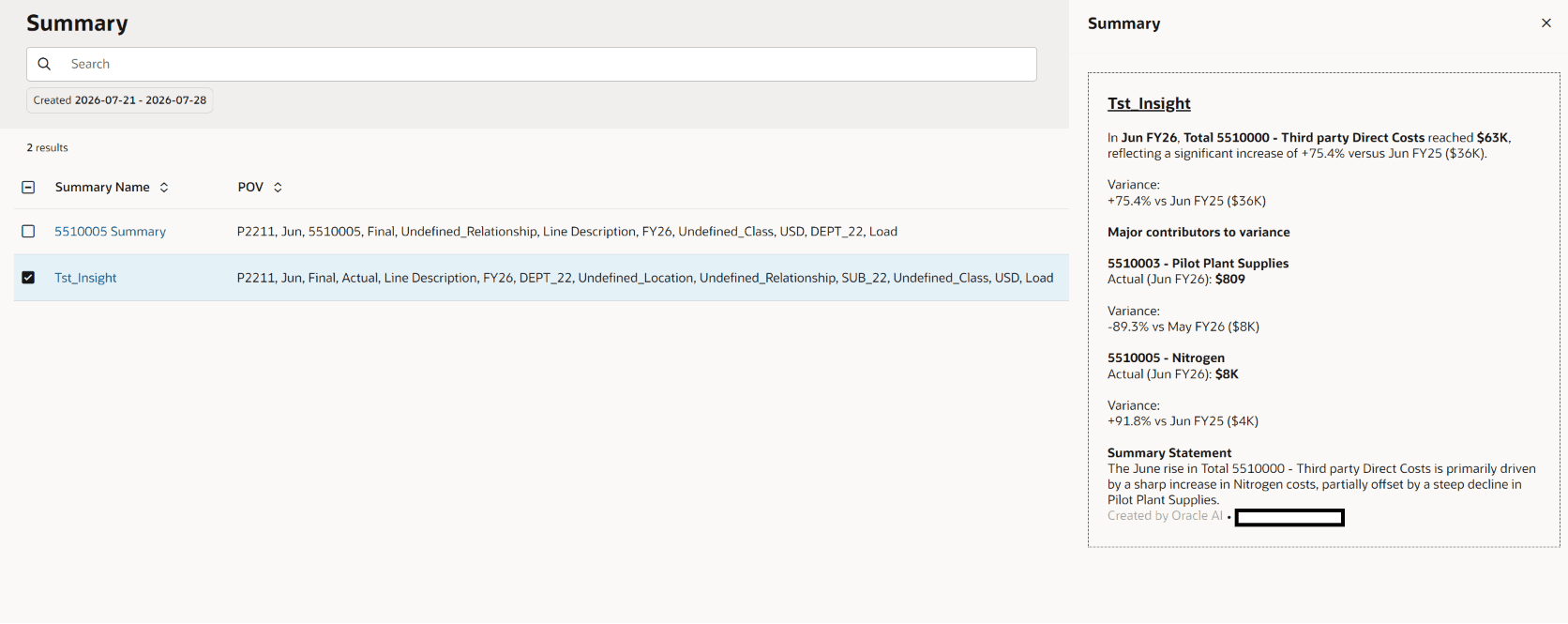
IPM displays an insight when the configured variance exceeds the applicable threshold. The insight identifies the affected metric and provides the comparison and variance details for further analysis.
How to Validate the Result
For each generated Period Movement Variance Insight:
- Identify the affected metric or account.
- Note the current period and comparison benchmark.
- Check the underlying values for both periods.
- Confirm the variance direction and magnitude.
- Verify that the same dimensional intersection is being compared.
- Confirm that the variance exceeded the configured threshold.
- Use the Explainability view for additional benchmark details.
IPM Period Movement Variance Validation Checklist
- The application meets the IPM prerequisites.
- The correct cube is selected.
- The calendar includes the required historical periods.
- The correct current period is configured.
- The historical data slice contains the intended time series.
- The required dimensional members are selected correctly.
- The variance metric is correctly selected.
- The comparison benchmark is appropriate for the business requirement.
- The variance threshold is meaningful for the metric being analyzed.
- Display dimensions are configured for analysis.
- Impact Magnitude thresholds are configured.
- The IPM job completes successfully.
- Generated insights are reviewed in the Insights tab.
- Underlying current and comparison period values are validated.
- The business user confirms that the insight is meaningful.