

If you've ever opened a Planning form on the first of the month and manually swapped out the period reference (in the form, in a business rule, in a report script), you already know how much friction Oracle EPM Cloud can create without the right variables in place. Multiply that update across every form and script tied to the current month, and a two-minute fix turns into a recurring monthly chore.
Substitution Variables and User Variables both exist to eliminate that friction, but they solve two different problems. Substitution Variables keep shared, frequently changing values, like the current month, consistent across the entire application. User Variables let each individual user personalize their forms and reports around their own preferred Entity, Department, or Cost Center. They look similar on the surface, but knowing when to reach for each one is what separates a well-run EPM Cloud environment from a high-maintenance one.
What Are Substitution Variables?
Substitution variables act as global placeholders for information that changes on a regular basis. For example, you can set the current month to a substitution variable called CurMnth. When the month rolls over, you update the value once, and every form, business rule, and report referencing CurMnth automatically reflects the new month, with no manual edits required.
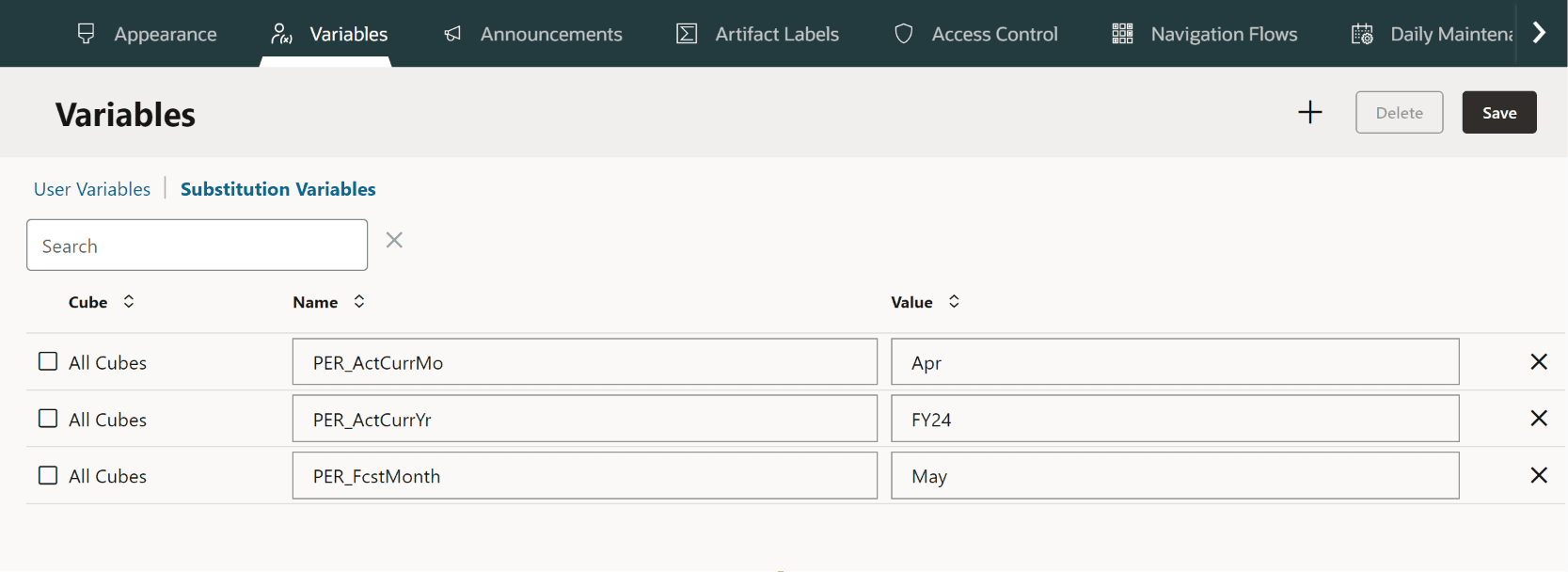
How to Create a Substitution Variable
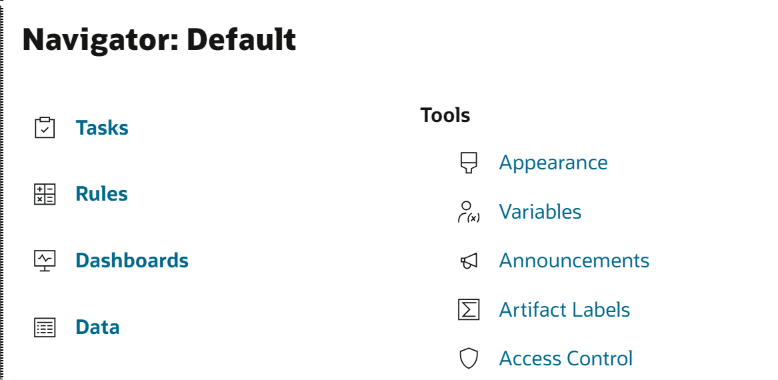
- Click the Navigator icon.
- Under Tools, click Variables.
- Select the Substitution Variables tab.
- Click Actions, then select Add.
- On the Add Substitution Variable page, select the Cube.
- For Name, enter the name of the substitution variable.
- For Value, enter a value for the substitution variable.
- Click OK.
Key Uses of Substitution Variables
- Defined at the application or cube level, not per user.
- Act as placeholders for frequently changing values (e.g., current month, prior year).
- Used in business rules, forms, and reports to simplify maintenance.
- Can be updated centrally, with the change reflected everywhere the variable is used.
What Are User Variables?
User Variables let each individual user define their own personalized dimension member selections for data forms and reports. Instead of scrolling through a long member list every time they open a form, users see their preferred members, a specific Department, Entity, or Cost Center, applied automatically. The result is faster navigation and a form that feels tailored to each person's role.
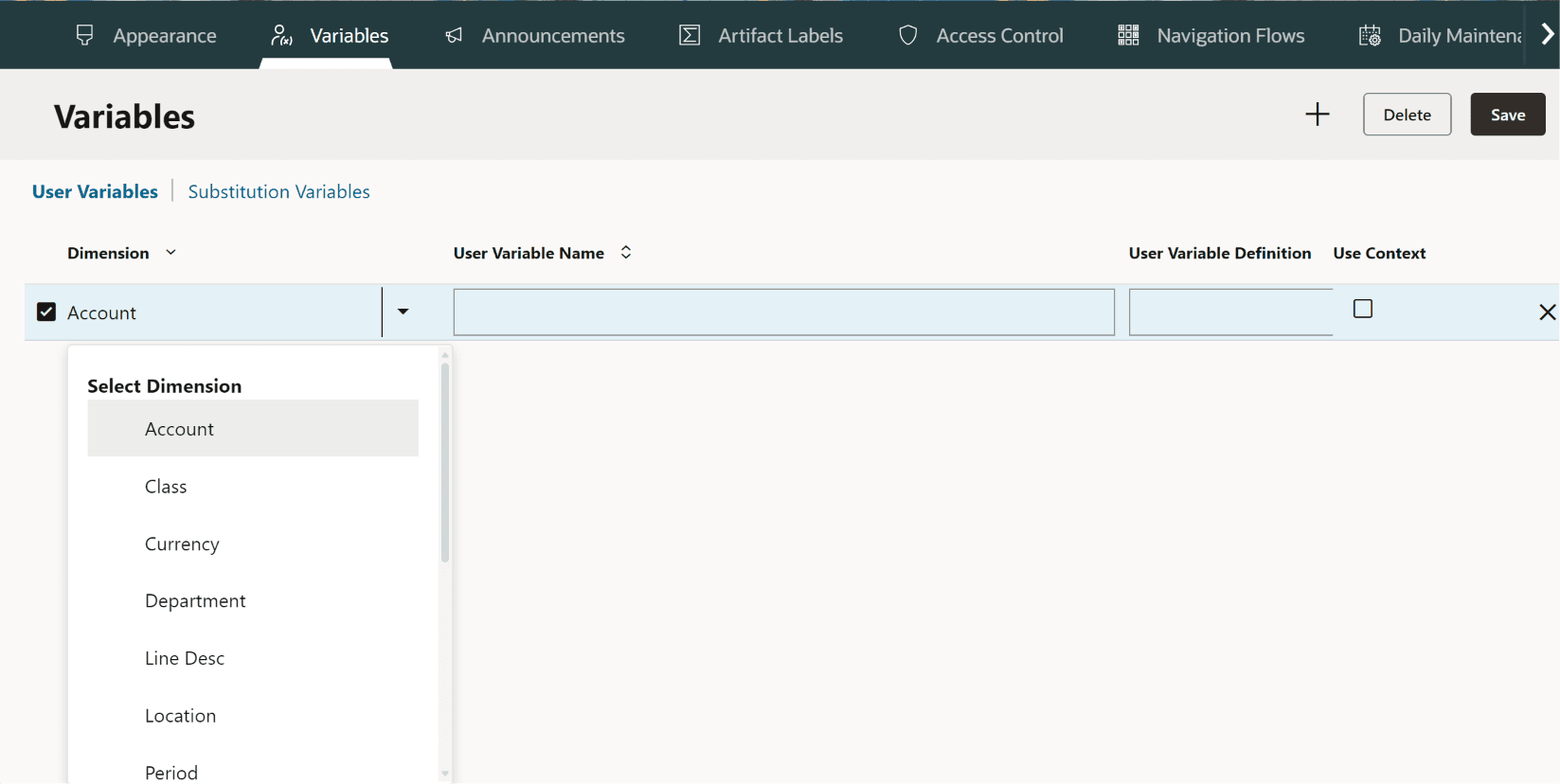
How to Create a User Variable
- Click the Navigator icon.
- Under Tools, click Variables.
- Select the User Variables tab.
- Click Actions, then select Add.
- For Dimension, select the dimension you want to base the variable on.
- For Name, enter a name for the user variable.
- For User Variable Definition, select the definition type.
- Click Save.
Key Uses of User Variables
- Defined per user and tied to a specific dimension (e.g., Entity, Scenario, Department).
- Used to filter data in forms, reports, and dashboards based on the user's selection.
- Each user sets their own value, enabling a personalized view for every login.
- If multiple members are assigned to a single user variable, only the first value displays in selectors.
Substitution Variables vs. User Variables: Key Differences
| Feature | Substitution Variables | User Variables |
|---|---|---|
| Purpose | Store dynamic values that can be reused across the application. | Store personalized dimension selections for individual users. |
| Scope | Application-wide, cube-level, or plan type level. | User-specific. Each user can have different values. |
| Who Sets It? | Administrators or users with appropriate privileges. | Individual users (or administrators can define the variable). |
| Value Type | Any text or member name (for example, current period, current year). | Dimension members only (such as Entity, Department, Cost Center, or Product). |
| Primary Use | Business rules, calculations, forms, reports, and scripts. | Data forms, dashboards, and reports for personalized filtering. |
| Changes Affect | All users and objects that reference the variable. | Only the individual user's view. |
| Maintenance | Centralized: update once, reflected everywhere the variable is used. | Managed individually by each user. |
| Example | &CurYear = FY26, &CurPeriod = Jul | MyEntity = US_Operations, MyDepartment = Finance |
| Typical Benefit | Reduces maintenance and improves consistency. | Improves usability by personalizing data selection and navigation. |
The short version: if a value should be the same for everyone and only needs to be updated in one place, use a Substitution Variable. If a value should be different for each person based on their role, use a User Variable. Most well-designed EPM Cloud applications use both: Substitution Variables to keep time-based references current across the board, and User Variables to keep every user working inside the slice of data that's relevant to them.
Getting Started
Both variable types are available today in Planning, PBCS, EPBCS, FCCS, and other Oracle EPM Cloud applications built on the standard Planning framework. If your application is still relying on hardcoded month references, or asking every user to manually filter down to their department each time they open a form, auditing your existing variables, or setting up your first ones, is a quick win worth prioritizing before your next close cycle.